


I don’t like OpenClaw. But pretty hard to resist the urge to try.
I think it does demonstrate something interesting about agents - 1) the additional utility when you hook it to a heartbeat to do something at a set frequency, or cron for a scheduled task; 2) the convenience of letting it communicate with you over a messaging app.
But I really can’t see what else it offers in additional to say Claude Code, which already allows for multi-agent workflows.
Ok, maybe if being exposed to the internet, or losing your data is your thing, then I agree, OpenClaw without any additional safeguards is definitely for you.
OpenClaw’s issues must be obvious. NVIDIA just announced NemoClaw at GTC - essentially OpenClaw with enterprise-grade security guardrails baked in. NanoClaw, a lightweight alternative, takes a different approach by isolating each agent in its own Docker container.
And so when I tried it, I made some adjustments to help mitigate this. Probably not perfect, but I think I can live with its risks with these controls. And I think you can use them for any of the other Claws too.
So here’s the short guide on what I did. I won’t copy and paste all the scripts. Just use my text below as a prompt and I am sure any of the LLMs can help you.
The Setup
I run it on a DigitalOcean VPS - Ubuntu 24.04, 2 vCPU, 2GB RAM, $12/month, Singapore region. I went with a manual setup instead of the 1-Click app because I wanted full control over every layer of the stack.
The finished stack looks like this:
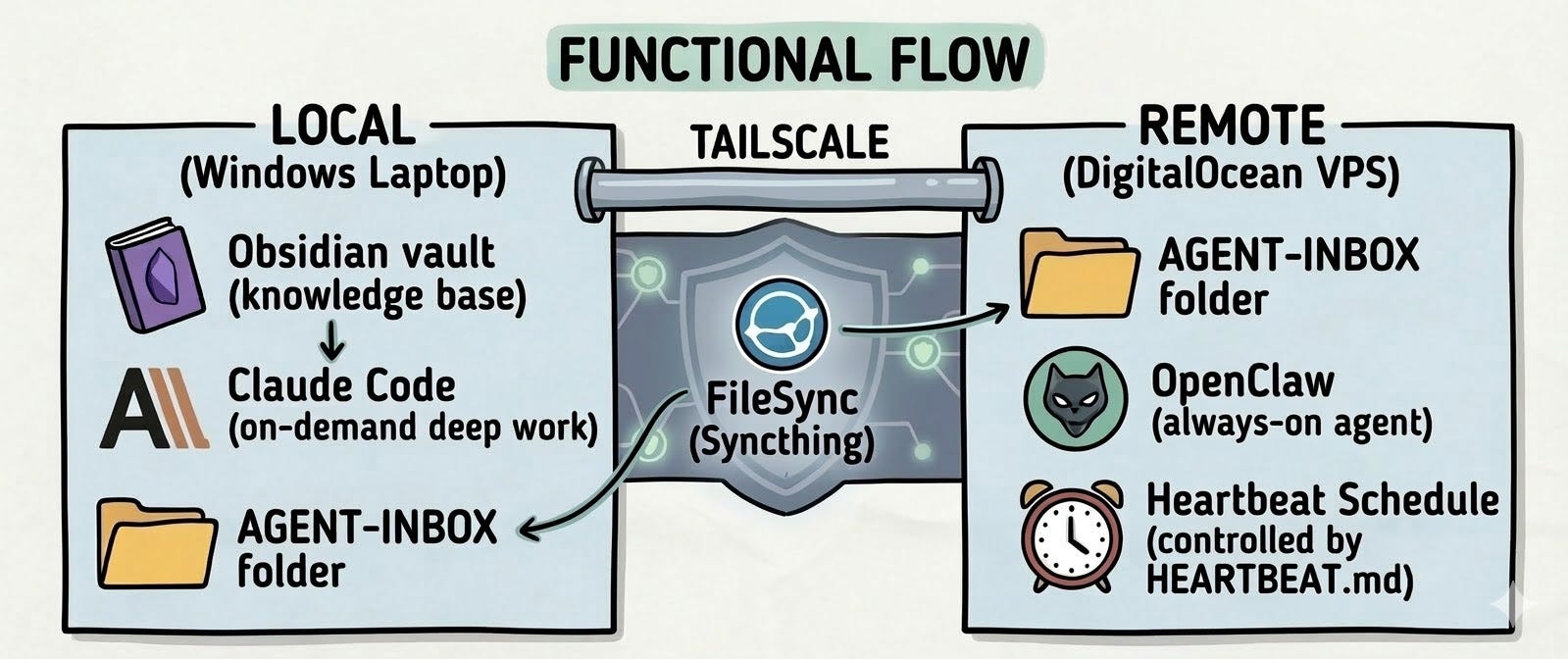
What I use it for: OpenClaw runs 24/7 on the VPS. Every hour it wakes up, checks my task files, and stays silent if nothing is urgent. Every morning it sends me a briefing on Telegram. Claude Code runs locally for deep work and pushes outputs into a shared AGENT-INBOX folder. OpenClaw picks them up.
Total cost: $12/month for the server. OpenClaw lets you plug in your own API key. There’s an option for using your existing Claude key that will come up after the OpenClaw onboard.
Now, on to the controls.
Control 1: Server Hardening
Out of the box, a VPS is exposed. Default root login, password authentication, every port open. The first thing to do is reduce the attack surface.
Every service you run is an attack surface. Make each one as small as possible, and add friction at every layer so that even if one layer fails, the next one holds.
The key steps: update everything, create a non-root user (don’t run your server as Administrator), disable password authentication so only SSH keys can log in, and restrict root login entirely.
I won’t paste every command here - ask Claude or ChatGPT to give you the steps for hardening a server for Ubuntu 24.04 and it’ll give you the full thing.
Control 2: Firewall and Fail2ban
Two layers. UFW (Uncomplicated Firewall) controls who can knock on your door at all - deny all incoming by default, then explicitly allow only what you need. Fail2ban monitors your login logs and automatically bans IPs that fail authentication too many times.
One thing to watch out for: enable UFW after you allow SSH, not before. Get the order wrong and you immediately lose access to your own server.
But even with both of these, your SSH port is still visible to the public internet. Bots still find it, still try it. Fail2ban is a mitigation, not a solution.
Control 3: Tailscale - Making the Server Invisible
What if the SSH port wasn’t visible at all?
Tailscale creates a private encrypted network across the internet - but only devices you authenticate can join. Think of it as a private LAN that ignores physical location. Every device gets a private IP in the 100.x.x.x range. Your VPS gets one. Your laptop gets one. They talk through an encrypted WireGuard tunnel regardless of where they physically are.
The key part: your VPS’s public IP can have all ports closed. Tailscale establishes peer-to-peer through NAT traversal - no open ports required. Install it on the VPS, install it on your laptop, log in with the same account - done.
Once Tailscale is working, update your UFW rules to allow SSH only on the Tailscale interface, and remove the public SSH rule. After this, run a port scan on your VPS’s public IP. You’ll see nothing. The server is invisible. Fail2ban becomes a backup layer rather than the first line of defence.
As always, test SSH via the Tailscale IP in a second terminal before removing public access.
Installing OpenClaw
With the controls in place, this is the straightforward part.
curl -fsSL https://deb.nodesource.com/setup_22.x | sudo -E bash - sudo apt install -y nodejssudo npm install -g openclawopenclaw onboardFor NemoClaw, it will probably look like this (based on Nvidia’s instructions)
curl -fsSL https://nvidia.com/nemoclaw.sh | bashnemoclaw onboardThe setup wizard walks you through AI provider (I use Anthropic), API key, and gateway token. It installs OpenClaw as a user-level systemd service - not a system-level one. This matters:
This works:
systemctl --user restart openclaw-gatewayThis silently fails:
systemctl restart openclaw-gatewayEvery OpenClaw service command needs --user. Burned time on this.
The dashboard
OpenClaw has a web dashboard. It binds to localhost only, so you access it via SSH tunnel:
openclaw dashboard # prints URL with tokenssh -N -L 18789:127.0.0.1:18789 openclaw@YOUR_TAILSCALE_IPThen open the full URL including the #token= fragment in your browser.
Don’t open
http://localhost:18789/
bare. The #token= fragment is the authentication handshake. Without it, the gateway sees an unapproved device and shows “pairing required.” The dashboard looks like it loaded - it hasn’t connected. Use the full URL from openclaw dashboard.
Syncthing - The Sync Layer
OpenClaw on the VPS needs a way to receive tasks and send outputs back. I use Syncthing - open-source, peer-to-peer file sync, no cloud intermediary.
The synced folder (AGENT-INBOX) lives inside my Obsidian vault on Windows and mirrors to remote VPS. I write tasks in Obsidian, they appear on the VPS within seconds. OpenClaw writes outputs on the VPS, they appear in Obsidian within seconds.
One thing to watch out for: install Syncthing from the official apt repository, not Ubuntu’s default packages - the default version is outdated enough to cause silent sync failures when paired with a newer Windows client.
The Heartbeat
The heartbeat is the reason I tried OpenClaw in the first place. It’s the cron-like behavior - wake up on a schedule, check your files, act without being asked.
openclaw config set agents.defaults.heartbeat.every 1hopenclaw config set agents.defaults.heartbeat.target lastopenclaw config set agents.defaults.heartbeat.activeHours.start "06:00"openclaw config set agents.defaults.heartbeat.activeHours.end "01:00"openclaw config set env.vars.TZ "Asia/Singapore"Note: use the full dotpath agents.defaults.heartbeat.every, not just heartbeat.every. The docs show JSON structure, the CLI uses dotpaths.
If OpenClaw finds nothing urgent, it stays silent. No Telegram noise. Only substantive findings surface. This is controlled by a HEARTBEAT.md in your workspace - a checklist the agent follows on every run.
One important step after setup: delete the BOOTSTRAP.md file in your workspace. It’s OpenClaw’s first-run onboarding wizard that blocks the agent on every gateway start until a human responds. Once you’ve completed setup, remove it or the agent stays stuck in bootstrapping state indefinitely.
The Security Audit
OpenClaw has a built-in security audit you can run with openclaw security audit --deep. Worth running after setup to confirm your controls are in place.
The most important thing it tells you is the trust model. OpenClaw operates as a “personal assistant” - single user, single trusted operator. It’s not designed for multiple users sharing one gateway. If you’re thinking about running this for a team or clients, that’s the line that should make you pause.
Is It Worth It?
Honestly, I’m still not sure.
The heartbeat and the Telegram integration are genuinely useful - having an agent check on things hourly and surface only what matters is different from having a chatbot you talk to. And the data sovereignty matters to me.
I’ll keep running OpenClaw for a while to see if it sticks. See if the habit of an always-on agent changes how I work. But I wouldn’t tell anyone to just run it.
If I were starting today, I’d probably look at NanoClaw first - it’s ~4,000 lines of code versus OpenClaw’s > 400,000, and agent gets its own isolated container. NemoClaw is worth trying too, especially if you’re in an enterprise context. Both are open source.
But the manual controls I described above? They’d apply to any of these. Server hardening, Tailscale, firewall rules - that’s not OpenClaw-specific.
If you’ve tried self-hosting OpenClaw (or variants such as NanoClaw), what additional controls did you put in place? Also what else do you find useful about it (beyond say Claude Code or Codex) that warrants the effort?
#AI #AgenticAI #Security #OpenClaw #NemoClaw
That's a cool guide, I have learned some things, and will probably implement it, too. Have you seen the control panel AlphaClaw?
Otherwise, I'd love to hear your perspective on benefits it gives you. So far, I am on a similar page: kinda cool, but, ultimately, it doesn't really improve my life that much if at all.